
Table of Contents
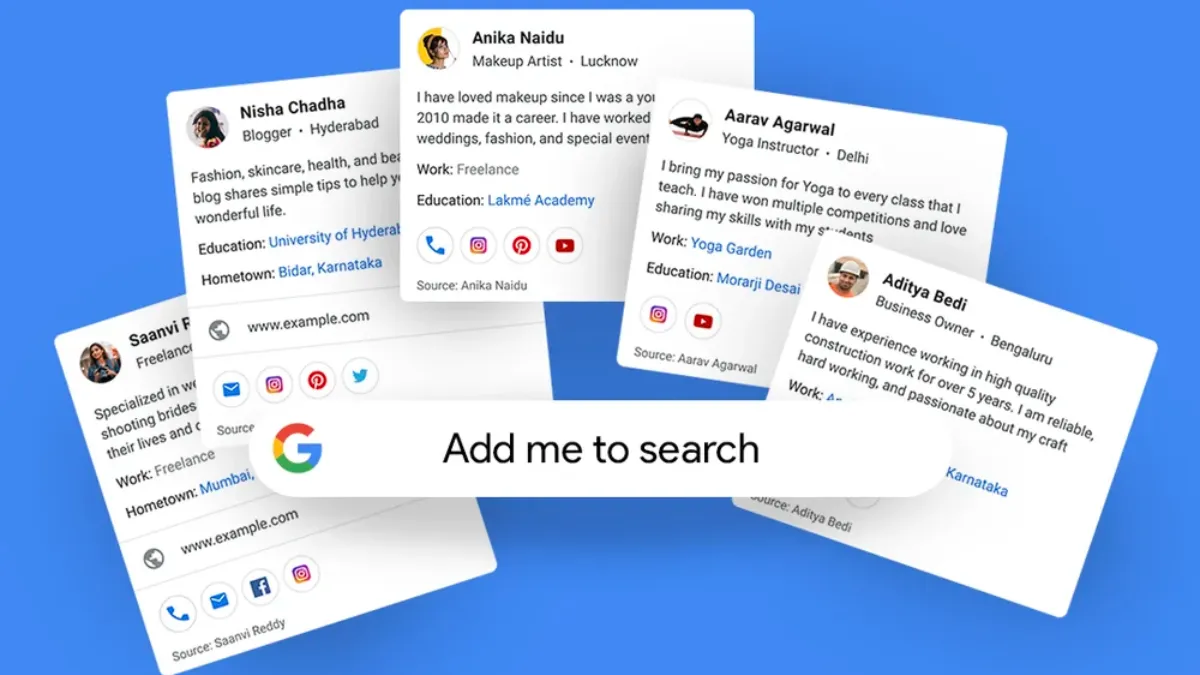
The Google People Card offers individuals, especially small business owners, a platform to prominently display their name and crucial details on Google Search, enhancing their visibility and facilitating connections with others. Accessible to nearly anyone with internet connectivity, creating a People Card requires meeting certain prerequisites. This guide will outline the steps to create a Google People Card and the essential criteria needed for its formation.
Requirements for creating a People Card
- The People Card is exclusively visible on mobile phones and not accessible via web or PC.
- This feature is currently available in select countries such as India, Kenya, Nigeria, and South Africa.
- Users must have their language settings set to English or Hindi to access the People Card feature.
- An active Google account is required for setup.
- A unique mobile number that has not been previously used for a People Card is also necessary to set up the card.
How to create People Card on Google Search
If you meet the aforementioned requisites and are logged into your Google account on your mobile phone, follow these steps to add yourself to Google Search:
Step 1: Open the Google Search app on your mobile phone.
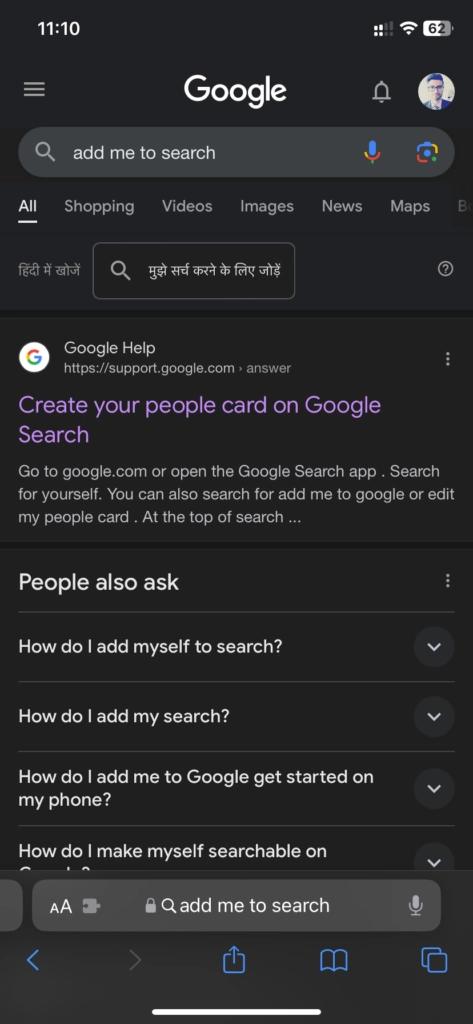
Step 2: In the search bar, type “add me to Search” and press Enter.
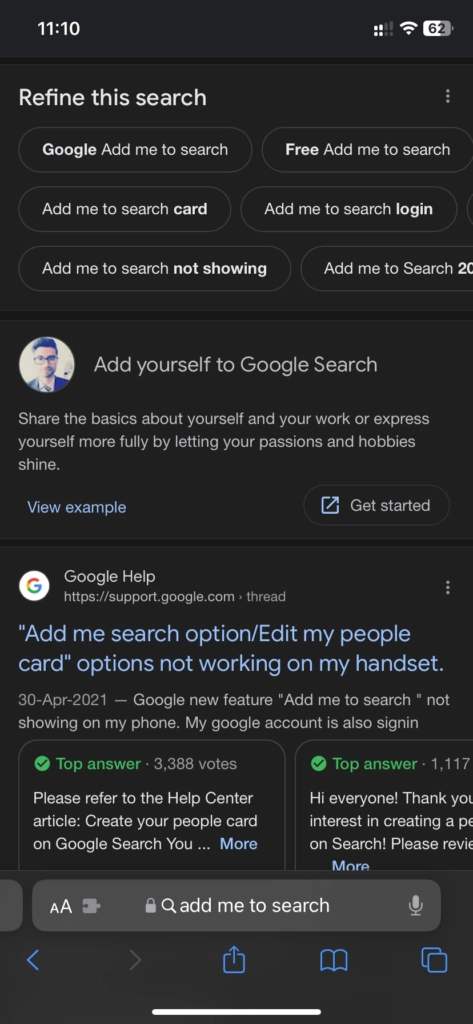
Step 3: Tap on “Get Started.”
Step 4: Enter your mobile number for verification purposes. Note that this won’t be made public unless you choose to display it on your People Card.
Step 5: On the following page, you’ll need to fill in some basic details. Your name will be auto-filled. Proceed to enter additional information such as your Location, About section, Occupation, Education, Website, Social Profiles, Email, Phone Number, and Hometown.
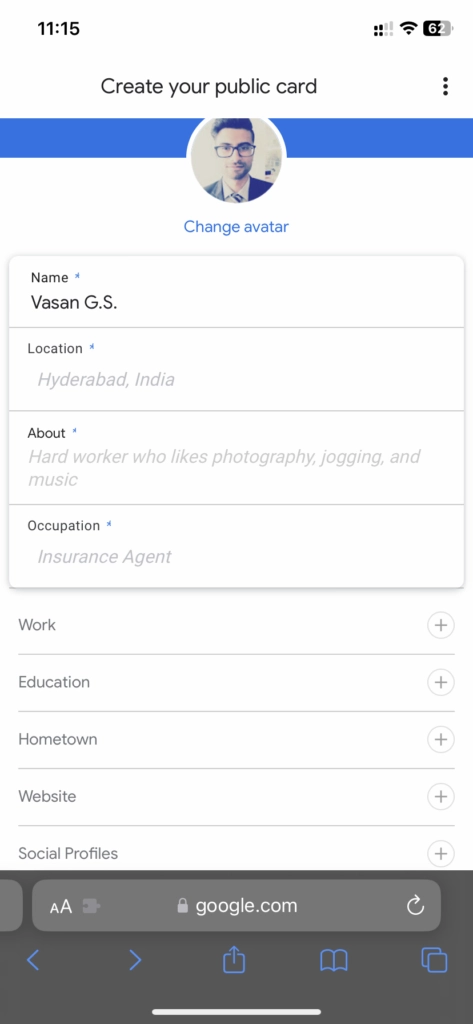
Step 6: Press on the “Preview” option. Once you have verified that all details are correctly filled, proceed to hit the “Submit” option.
Keep in mind that Google mentions it may take a few hours for your People Card to appear on Google Search.
If you have a common name that is shared with a celebrity or public figure, you may need to add a distinguishing suffix such as your profession or another relevant factor to differentiate yourself.
How to edit People Card on Google Search
Step 1: Navigate to Google Search and ensure that you are signed in with the relevant Google account.
Step 2: In the search bar, type “edit my people card” and hit Enter.
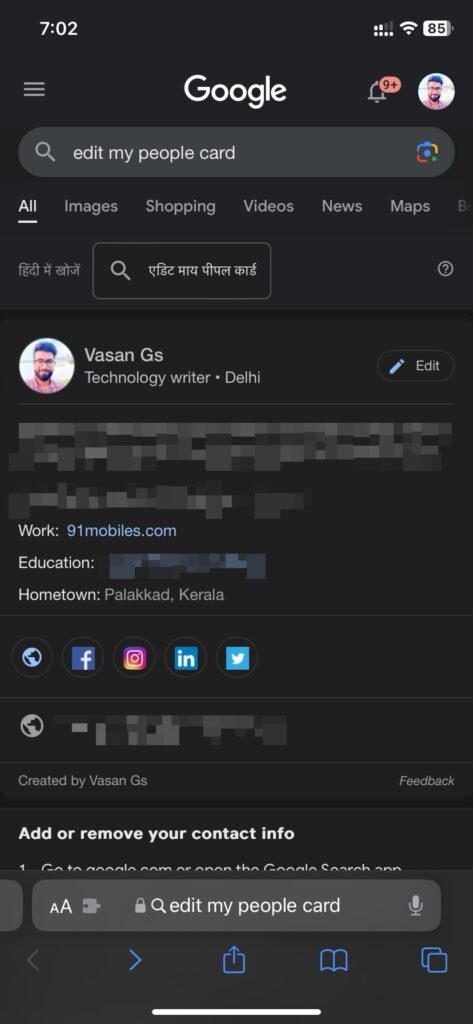
Step 3: Locate the Edit button at the top of your People Card and tap on it.
Step 4: Click on the respective fields that require changes, and make the necessary modifications.
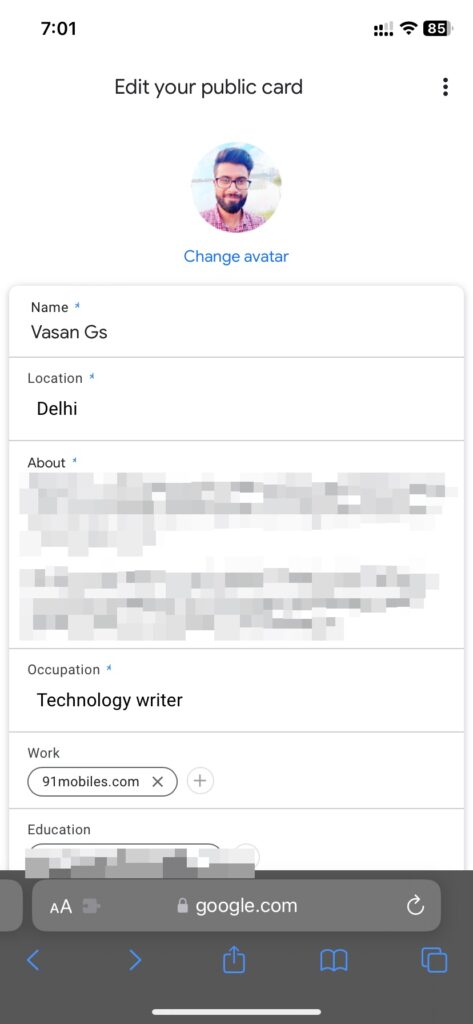
Step 5: Tap on the Preview button located at the bottom of the screen.
Step 6: Review all the changes to ensure they appear as desired. If everything looks correct, proceed to press the Save option to save your updates.
How to remove People Card from Google Search
Step 1: Open Google Search and search for “edit my people card.”
Step 2: Once you see the page where you can edit, add, or remove details from your People Card, scroll down towards the bottom of the page.
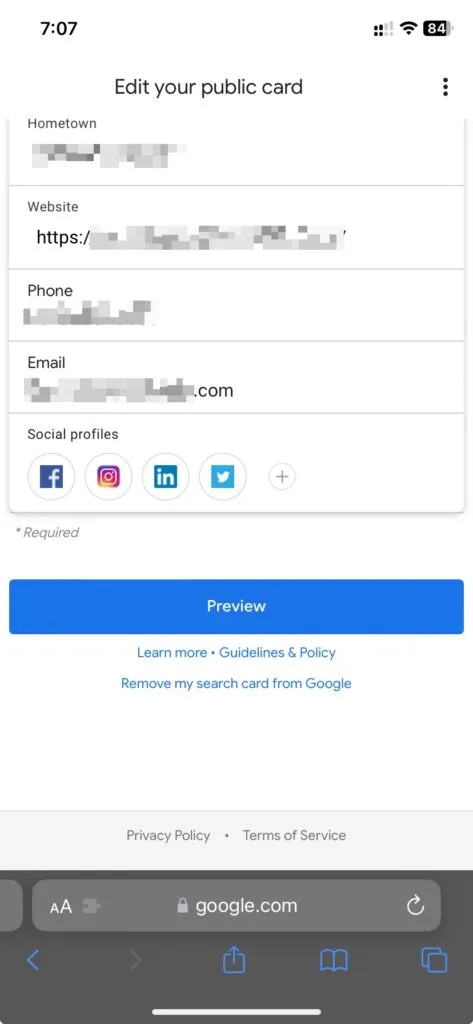
Step 3: Scroll down until you reach the section beneath the Preview button. You will notice a line in blue color that reads, “Remove my search card from Google.”
Benefits of adding my People Card to Search
Adding your People Card to Google Search offers several benefits:
-
Increased Visibility: By having a People Card, you enhance your online visibility, making it easier for others to find and connect with you.
-
Professional Branding: It allows you to showcase your professional details, including your occupation, education, and social profiles, helping to establish your personal brand.
-
Enhanced Networking: Having a People Card facilitates easier connections with others, whether they are potential clients, collaborators, employers, or peers in your industry.
-
Improved Search Presence: Your People Card appears prominently in Google Search results, providing a quick snapshot of who you are and what you do, which can be particularly beneficial if you have a common name or share a name with a celebrity.
-
Control Over Information: You have control over the information displayed on your People Card, allowing you to ensure that only accurate and relevant details are presented to those searching for you.
-
Convenience: It provides a convenient way for people to access your contact information and other essential details directly from Google Search, saving them time and effort in finding and reaching out to you.
Overall, creating a People Card can be a valuable tool for personal and professional networking, branding, and online presence management.
FAQs
What is a Google People Card?
A Google People Card is a virtual business card that allows individuals to create a public profile that appears in Google Search.
Who can create a People Card?
Individuals with a Google account and a unique mobile number can create a People Card. The feature is currently available in select countries.
How do I create a People Card?
To create a People Card, search for “add me to Search” on Google, then follow the prompts to enter your information and verify your identity.
What information can I include on my People Card?
You can include your name, location, occupation, education, website, social profiles, email, phone number, and hometown on your People Card.
Is my information private?
Your information is only visible to others if you choose to make it public on your People Card. Otherwise, it remains private.
Can I edit or remove my People Card?
Yes, you can edit or remove your People Card at any time by following the steps outlined in the Google Search results for “edit my people card.”
Conclusion
Creating a Google People Card offers individuals a powerful tool to enhance their online presence and facilitate connections with others. By following the steps outlined in this guide, anyone with a Google account and a unique mobile number can create their own People Card. This feature is particularly beneficial for small business owners, freelancers, professionals, and individuals seeking to establish their personal brand and expand their network. With control over the information displayed and the ability to edit or remove the card as needed, users can ensure that their online presence accurately reflects their identity and objectives.
While the People Card feature is currently available in select countries and accessible only on mobile devices, it provides a convenient and effective way to showcase one’s credentials, contact information, and professional background directly within Google Search results. Overall, creating a Google People Card empowers individuals to take control of their online visibility and leverage the power of search engines to connect with others in meaningful ways.