
Table of Contents
In the fast-paced world of technology, users are constantly seeking ways to enhance their desktop experience. One such tool that has gained popularity is TaskbarX. This powerful utility allows users to customize and optimize their Windows taskbar, providing a sleek and personalized desktop environment. In this comprehensive guide, we’ll delve into the ins and outs of TaskbarX, exploring its features and demonstrating how you can leverage its capabilities to transform your desktop. Let’s embark on a journey to unlock the full potential of TaskbarX.
What is TaskbarX?
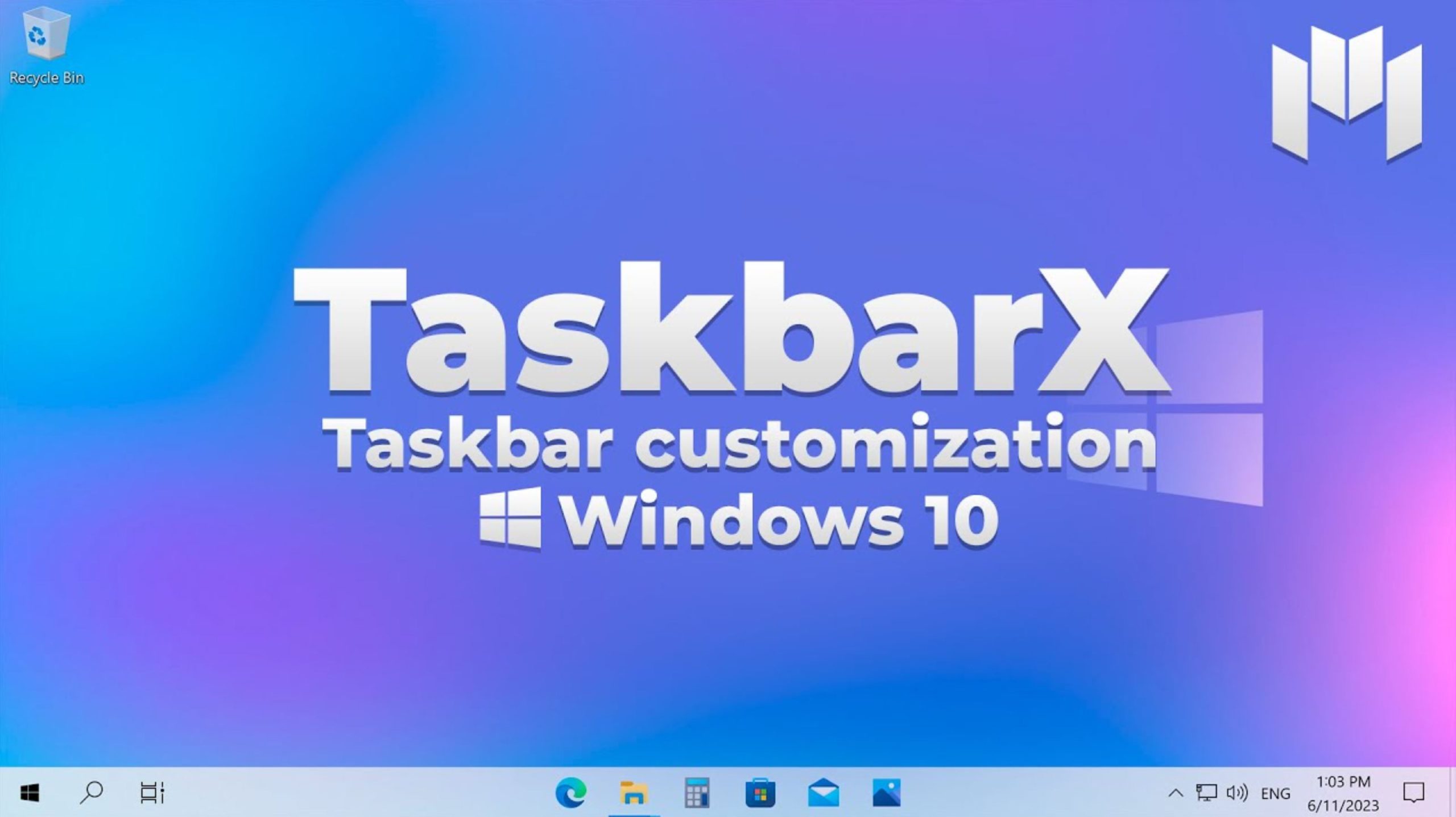
TaskbarX is a versatile tool designed to enhance the visual appeal of your Windows taskbar. Developed by Chris Andriessen, this application empowers users to customize the taskbar with dynamic and animated features. From color transitions to icon animations, TaskbarX adds a touch of modernity to your desktop interface.
Getting Started with TaskbarX
Download and Installation
The first step in using TaskbarX is to download and install the application. Visit the official TaskbarX website or trusted software repositories to ensure a secure download. Follow the installation wizard, and in no time, you’ll have TaskbarX up and running on your system.
Configuration and Settings
Once installed, TaskbarX provides a user-friendly interface for customization. Explore the settings to tailor the taskbar to your preferences. From adjusting transparency levels to selecting animation styles, TaskbarX offers a wide range of options to make your desktop uniquely yours.
Key Features of TaskbarX
Dynamic Color Transitions
TaskbarX allows users to implement dynamic color transitions on their taskbars. This feature automatically adjusts the color scheme based on the dominant colors in your wallpaper, creating a harmonious visual experience. Say goodbye to static taskbars and embrace a dynamic, ever-changing desktop ambiance.
Icon Animation
Bring your taskbar to life with animated icons. TaskbarX introduces captivating icon animations that respond to various system events. Whether it’s notifying you of a new message or indicating system processes, these animations add a touch of dynamism to your desktop.
Taskbar Centering
TaskbarX enables you to center your taskbar, a design choice that has gained popularity for its aesthetic appeal and ease of use. Centering the taskbar provides a balanced and symmetrical look to your desktop, enhancing overall visual harmony.
Advanced Customization
Delve into TaskbarX’s advanced customization options to fine-tune every aspect of your taskbar. Adjust padding, spacing, and alignment to achieve the perfect layout. With granular control over these settings, you can create a taskbar that suits your workflow and personal taste.
Tips for Optimizing TaskbarX
Regular Updates
Stay informed about TaskbarX updates. The developer frequently releases new versions with bug fixes, performance improvements, and additional features. Keeping your TaskbarX installation up to date ensures a smooth and reliable experience.
Community Support
Join the TaskbarX community to connect with other users, share tips and tricks, and troubleshoot any issues you may encounter. Online forums and social media groups dedicated to TaskbarX provide valuable insights and user-generated content for inspiration.
Backup Configurations
Before making significant changes to your TaskbarX settings, consider backing up your configurations. This precautionary step ensures that you can easily revert to a previous setup if you’re not satisfied with the changes or encounter any issues.
Troubleshooting Common Issues
Despite its user-friendly design, users may encounter occasional issues with TaskbarX. Here are some common problems and their solutions:
Performance Concerns
If you experience performance issues, try adjusting the animation speed and complexity settings in TaskbarX. Lowering these settings can reduce system resource usage and improve overall performance.
Compatibility with Third-Party Themes
TaskbarX may not be fully compatible with certain third-party themes. If you encounter visual glitches, consider switching to a default Windows theme or reaching out to the TaskbarX community for theme-specific solutions.
Conflicts with Other Software
In rare cases, conflicts with other software may affect TaskbarX functionality. Ensure that TaskbarX is not conflicting with any third-party applications or utilities on your system.
Conclusion
TaskbarX is a powerful tool that can elevate your desktop experience to new heights. By following this comprehensive guide, you now have the knowledge to unleash the full potential of TaskbarX. From dynamic color transitions to animated icons, this utility offers a myriad of customization options that cater to both aesthetic preferences and practical needs. Experiment, personalize, and enjoy a desktop environment that reflects your unique style. TaskbarX is not just a utility; it’s a canvas for your digital creativity.